
MiniMax H3 is a newly launched AI video generation model. Rather than building separate models for each task, it processes text, images, videos, and audio within a unified context and generates coherent videos from any combination of inputs. It supports text-to-video generation, keyframe recognition, reference video understanding, and precise video editing capabilities.
MiniMax H3 Deployment Tutorial
Deploying MiniMax H3 on your local computer: from software installation and workflow setup to prompt engineering and video generation using optimized prompts.
Installing ComfyUI (Version ≥ 0.30.0)
ComfyUI is currently the most powerful modular AI content creation engine. It features a node-based/flowchart interface that allows you to build complex AI workflows without writing any code—simply by assembling nodes like building blocks. You can easily generate images, videos, 3D models, audio, and more.
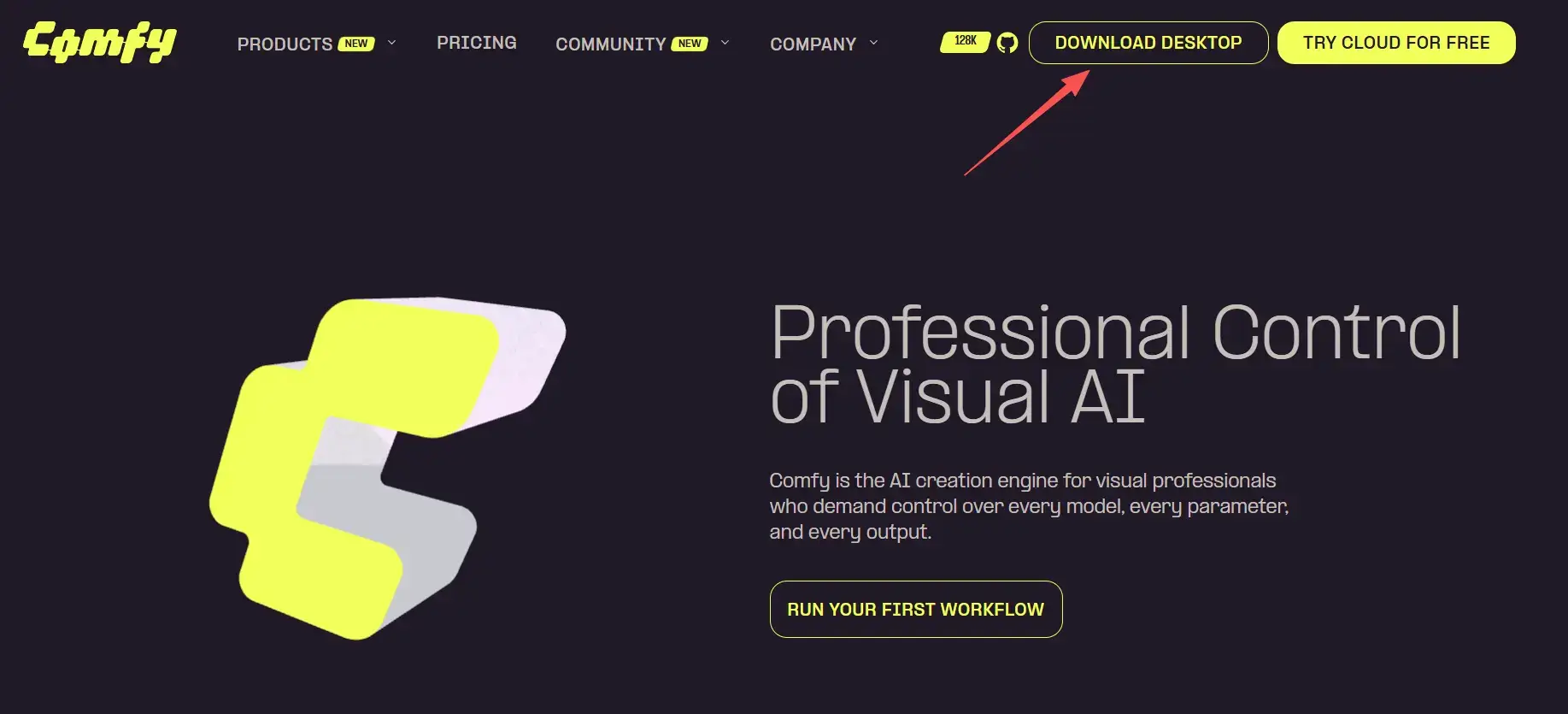
Visit the ComfyUI official website: https://comfy.org/, download the desktop installer package, and double-click to install with default settings throughout. The installer automatically handles Python, PyTorch, and CUDA installation.
If you already have ComfyUI: Check your version number. After launching, go to Settings (gear icon in the bottom-left corner) → About. If it's below version 0.30.0, you need to update—for the desktop version, check for updates in the menu; for manual deployments, run git pull.
Downloading the MiniMax-H3 Model Files
Visit the MiniMax-H3 model repository on HuggingFace.
-
ComfyUI/models/diffusion_models/
1. minimax_h3_fl2va_pruned_int8_convrot.safetensors (19.5GB)
2. minimax_h3_ref2va_pruned_int8_convrot.safetensors (19.5GB) -
ComfyUI/models/text_encoders/
1. qwen3vl_32b_minimax_h3_nvfp4_awq.safetensors (14.6GB) -
ComfyUI/models/vae/
1. minimax_h3_video_vae_fp16.safetensors (4.8GB)
2. minimax_h3_audio_vae_fp32.safetensors (577MB)
Installation Steps
- Open ComfyUI and navigate to Manager
- Search for "MiniMax-H3 Turbo" and install the custom node
- Download the LoRA weights from larryvrh/MiniMax-H3-Turbo-Lora[3]
- Place the .safetensors file in ComfyUI/models/loras/
- Restart ComfyUI
Getting Started with Video Generation
Loading the Workflow
From the ComfyUI top menu, go to Workflow → Browse Templates and find "MiniMax H3 Text-to-Video" to open it.
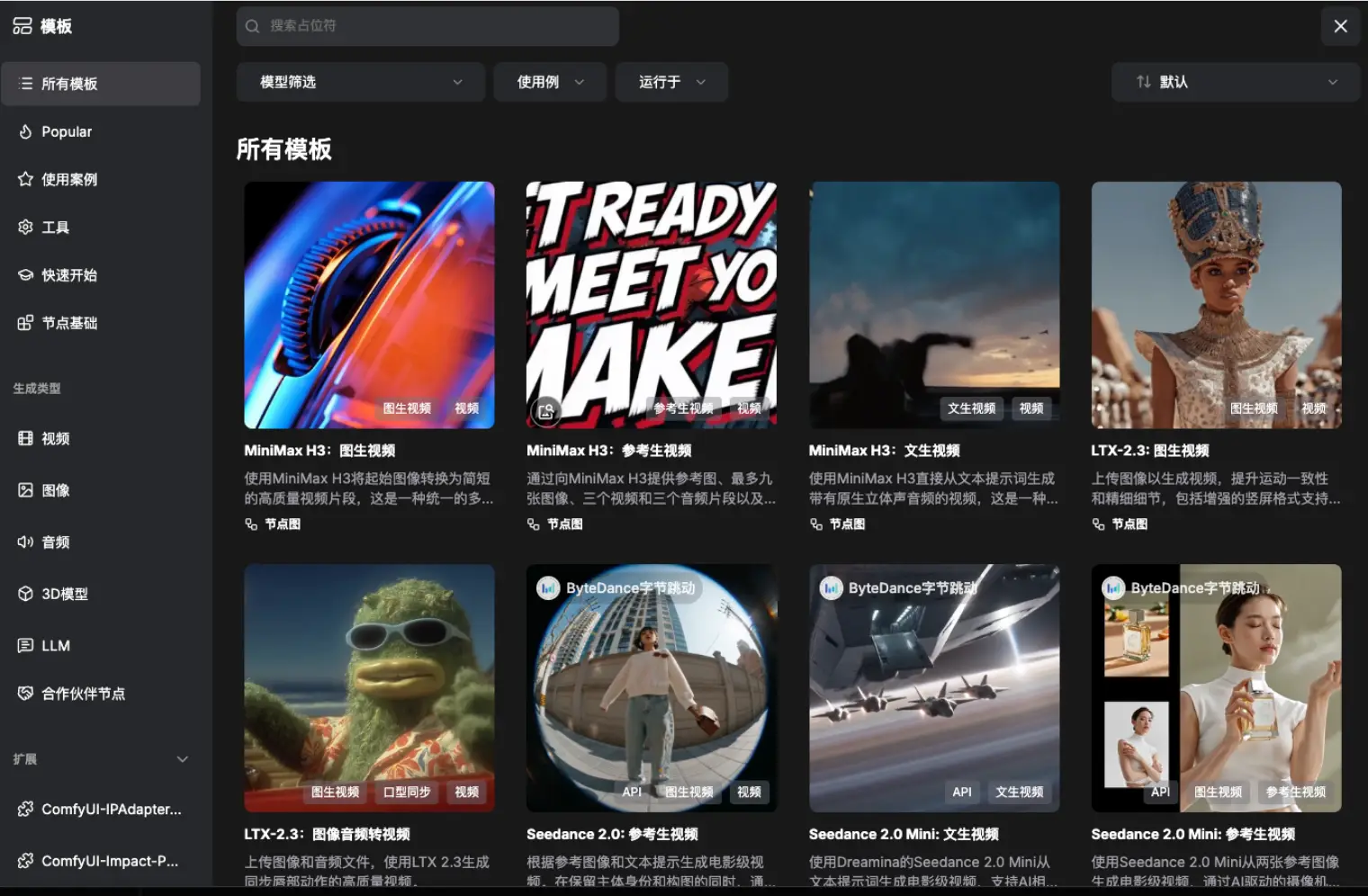
Note: If a prompt appears indicating missing models, a dialog will automatically pop up listing the missing files with download links. You can skip this step if you've already manually placed the files—if they're not recognized yet, restart ComfyUI once.
Writing Prompts
Official recommended segmented description format:
Visual style:
[Scene style, color tone, and overall mood]
0–X seconds:
[First shot: scene content + camera movement + text/voice]
X–Y seconds:
[Second shot: scene after transition + actions]
Audio:
[Ambient sound, music style]
After writing, click Queue Prompt (Run). The first time will be slow as the model loads (30+ GB from disk to memory), but subsequent runs will be much faster.
Video Generation Results
Text-to-Video (T2V) — Eyeglass Advertisement
Create a surreal 15-second high-fashion eyewear commercial combining experimental dance, impossible camera movement, and premium kinetic typography.Visual style:
Minimalist monochrome cobalt-blue studio, glossy reflective floor, sculptural lighting, deep shadows, occasional electric red accents. Luxury fashion film, surreal editorial art direction, precise choreography, cinematic slow motion mixed with sudden rhythmic cuts. Every frame feels intentionally designed.

0–3 seconds:
A pair of the exact eyeglasses floats alone in a blue void. The glasses slowly rotate while thin blueprint lines, tracking points, circles, and measurement markers scan across the frame. The words appear one at a time in sharp condensed typography:
THE FRAME
THE FORM
The letters bend around the glasses and briefly reflect inside the lenses.

3–6 seconds:
A female dancer enters wearing the eyeglasses. She performs elegant but slightly unnatural contemporary dance movements, with sharp pauses and impossible changes of direction. The camera moves around her in a smooth 180-degree orbit. Typography wraps around her body and glasses:

LOOK
CLOSER
The words stretch with motion blur, disappear behind her shoulders, and reappear through animated masks.

6–9 seconds:
The dancer suddenly splits into three perfectly aligned afterimages. Each version performs a different movement. The eyeglasses remain identical and stable on every face. Use split screens, liquid masks, graphic wipes, chromatic aberration, halftone textures, scribbles, arrows, interface markers, and rapidly shifting geometric overlays.Typography transforms dynamically:

SEE
MOVE
FASTER
Make the letters rotate in 3D, fragment into pieces, become vertical, upside down, oversized, tiny, and briefly form a tunnel around the dancer.

9–12 seconds:
Extreme close-up of the eyeglasses. The lens becomes an impossible portal showing multiple versions of the blue studio. The dancer moves behind the lens reflection as if trapped inside the glass. Add sharp flash frames, typography trails, bass-synchronized pulses, scan lines, and a fast graphic wipe.The word FRAME breaks apart and reconstructs as:

RE
FRAME

12–15 seconds:
The dancer stops completely. Silence for one beat. She slowly turns her face toward the camera. The camera pushes into the lens reflection. The eyeglasses fill the frame in a flawless luxury product close-up.

The words appear in sequence:
SEE DIFFERE
NT


AGAIN


\“AGAIN” expands until it fills the entire screen. Instant cut to black.Typography must be perfectly legible, correctly spelled, uppercase, and integrated into the scene as editorial motion graphics rather than subtitles. Use premium condensed grotesk typography, precise kerning, strong composition, motion blur, masking, 3D rotation, reflections, depth, and rhythm-synchronized animation.

Audio:
Experimental electronic art-pop, analog synth pulses, mechanical breathing, glass clicks, sharp bass hits, digital glitches, and one sudden moment of silence before the final product close-up.

Maintain consistent character identity, consistent eyeglasses design, realistic anatomy, elegant fashion styling, and clean cinematic image quality. No random text, no misspelled words, no subtitles, no product deformation, no extra glasses, no warped face, no extra limbs, no logos, no casual commercial look.
FAQ:
-
Model downloaded but ComfyUI can't find it → Check the directory paths. Place the main model in diffusion_models/, the encoder in text_encoders/, and VAE in vae/. Don't mix them up.
-
Video has no audio → Verify that the audio VAE is placed in the vae/ directory and that the workflow includes a VAEDecodeAudio node.
-
Out of Memory (OOM) → Try these approaches: ① Use a quantized model version (pruned_int8 / pruned_fp8) ② Enable the low_vram switch for Turbo LoRA ③ Reduce resolution to 608×352 to test the workflow first.
-
Frame count doesn't match input → H3's frame count snaps to a 17k+5 grid, so your input value will be rounded to the nearest valid value. For a 5-second video, you can use 124 frames directly.
-
Video output is distorted → Don't use resolutions below 384p; anything below 256p will fail. Also, avoid overly complex prompts—keep actions within each shot simple, as complex movements can cause character distortion.